How to Upgrade MikroTik RouterOS 6 to 7 with WinBox
By P8 ISP
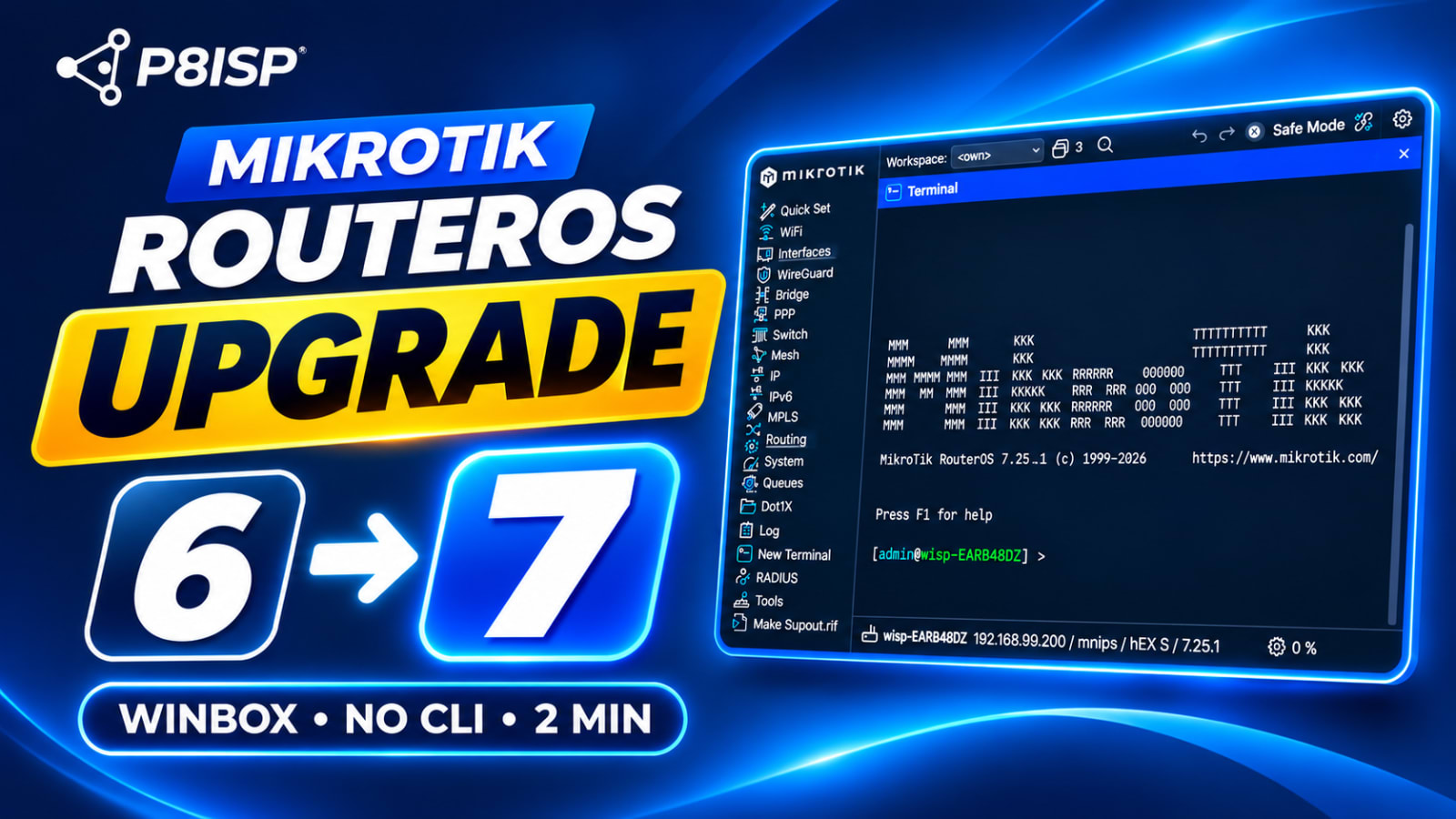
You can upgrade a compatible MikroTik router from RouterOS 6 to RouterOS 7 using WinBox, without touching the command line. Download the correct package, upload it to your router and reboot.
RouterOS 7 introduces WireGuard, an updated routing engine, improved routing capabilities, newer hardware support and ongoing security updates. However, you should check hardware compatibility and configuration requirements before upgrading a production router.
Watch the video: How to Upgrade MikroTik RouterOS 6 to 7 | WinBox Step-by-Step
Before you start
- Back up and export your configuration. In WinBox, open Files and click Backup. Also save a text configuration export and keep both copies outside the router. Do not assume a RouterOS 6 backup can be restored directly on RouterOS 7.
- Check hardware compatibility. Confirm your router supports RouterOS 7. MikroTik does not recommend v7 on devices with less than 64 MB RAM.
- Note your router's architecture. Open System → Resources and check Architecture Name, such as
mmips,armorarm64. Download the correct package for your architecture and model. - Update RouterOS 6 first. If your router runs an older v6 release, MikroTik recommends upgrading to the latest stable or long-term v6 release before moving to v7.
- Choose a release channel. Stable and Long-term are both available. Choose an appropriate supported release for your network and review its changelog.
- Check free storage. Some MikroTik routers have limited storage. Remove unnecessary files only after safely copying any backups or other data you need.
- Plan for downtime. The router will restart. If it provides internet access to customers, schedule the upgrade appropriately and have a recovery plan.
Step by step
-
Log in with WinBox. Connect to your MikroTik router using its MAC address or IP address.
-
Check the current version and architecture. Open System → Resources. In the video, the router is a hEX S with
mmipsarchitecture, running RouterOS 6.49. -
Download RouterOS 7. Visit mikrotik.com/download, select your router's architecture and choose the appropriate RouterOS 7 release. Download the main RouterOS system package (
.npk). -
Upload the package. In WinBox, open Files and drag the downloaded
.npkfile into the file list. Wait for the upload to complete. For models requiring separate wireless drivers or other essential packages, upload the correct matching packages before rebooting. -
Reboot. Open System → Reboot and confirm. RouterOS will process the uploaded upgrade package during startup. Allow the router to restart without interrupting power.
-
Reconnect. Once the router is available again, reconnect through WinBox. You may already see the updated RouterOS version in the neighbours list.
-
Verify. Open System → Resources and confirm that the Version field shows RouterOS 7. Also check your internet connection, routing, firewall, wireless interfaces and any other services that your network depends on.
Troubleshooting and FAQ
The router came back still on version 6. What happened?
The upgrade package may not have been installed. Verify that the upload completed, the package matches your router architecture and the device has sufficient storage. Open System → Log to check for package installation errors.
My router has Wi-Fi. Is one package enough?
Not always. Starting with RouterOS 7.13, wireless drivers are provided through separate packages on many devices.
Depending on your router, you may need the wireless or wifi-qcom package. Download the correct package for your hardware and make sure its version matches the installed RouterOS version. Otherwise, wireless interfaces may be missing after the upgrade.
Will I lose my configuration?
RouterOS normally converts the existing configuration during an upgrade from v6 to v7, but compatibility is not guaranteed for every feature or configuration.
Back up and export your configuration first. After upgrading, verify routing, firewall rules, queues, PPPoE, hotspot and any other critical services.
Long-term or Stable?
Both are official RouterOS release channels. Long-term generally prioritises a more conservative update cycle, while Stable receives newer changes sooner.
For customer-facing routers, choose a supported release appropriate for your hardware, test critical features and review the release notes before deployment.
Can I go back to v6?
Yes, if your router supports RouterOS 6, but downgrading can involve configuration compatibility issues.
A normal reboot does not install an older RouterOS package. You must use the Downgrade option in System → Packages.
Read our guide: How to Downgrade MikroTik RouterOS 7 to 6 with WinBox.