How to Downgrade MikroTik RouterOS 7 to 6 with WinBox
By P8 ISP
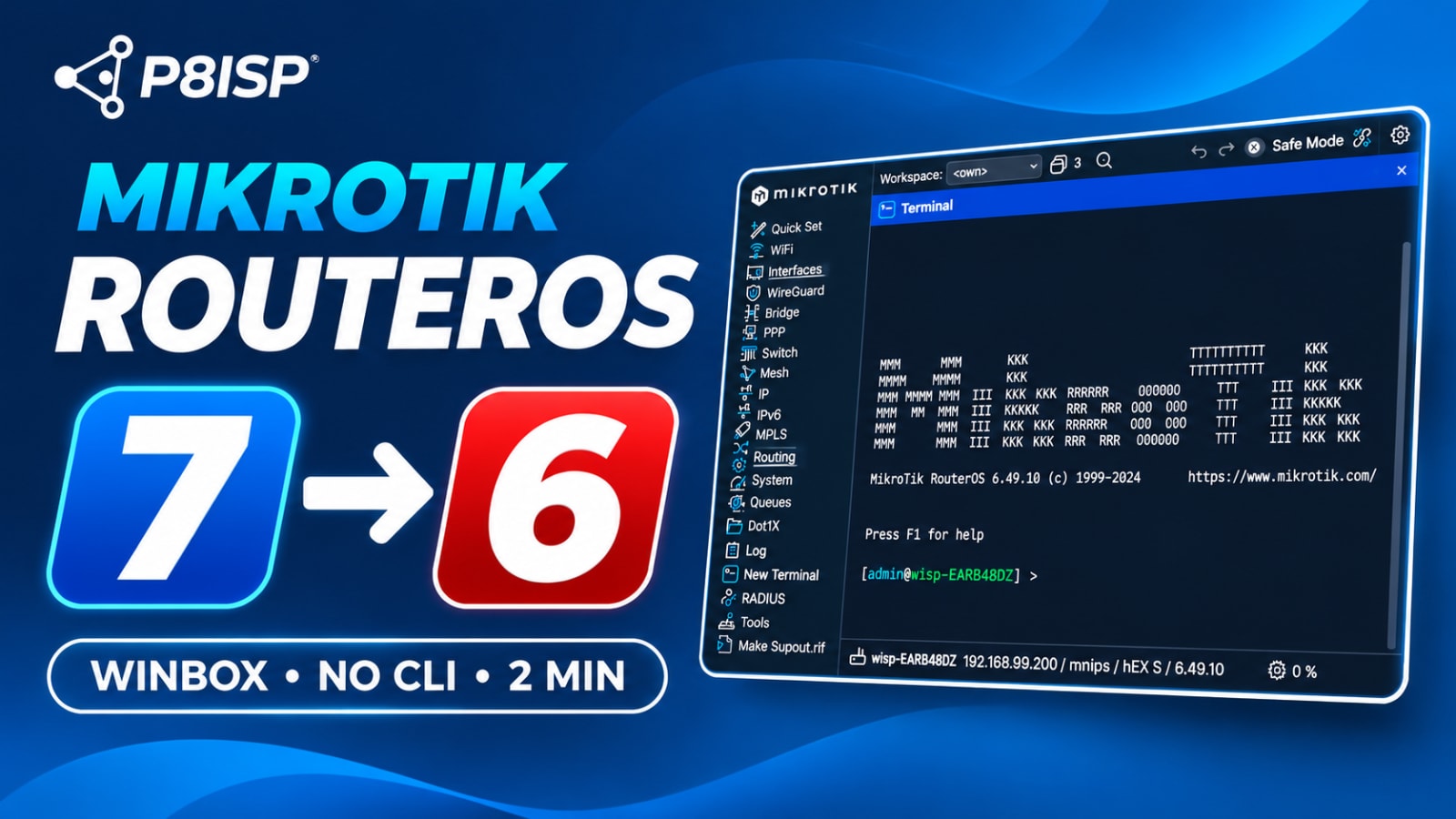
You can roll a MikroTik router back from RouterOS 7 to RouterOS 6 using WinBox, without the command line. The one step most people miss: a normal reboot won't install an older version. You have to use the Downgrade button in System → Packages.
There are good reasons to go back to v6. A script or configuration may behave differently on v7, a monitoring tool may still expect v6, or you may want to standardise a fleet of compatible routers on one version while testing v7.
Watch the video: How to Downgrade MikroTik RouterOS 7 to 6 | WinBox Step-by-Step
Before you start
- Back up and export your configuration. In WinBox, open Files and click Backup. Also create a text configuration export for reference. Keep copies outside the router. A RouterOS 7 configuration may not work correctly on RouterOS 6, and v7-specific settings may need to be recreated manually.
- Check compatibility. Not every MikroTik router supports RouterOS 6. Verify that your exact model supports the target release before proceeding.
- Note your router's architecture. Go to System → Resources and read the Architecture Name (for example
mmips,arm, orarm64). The package must match your architecture, but architecture alone does not guarantee compatibility. - Have WinBox and administrator access. You need to log in with sufficient permissions.
- Choose your v6 version. For this tutorial, we use RouterOS 6.49.23.
- Plan for downtime. The router will restart and temporarily disconnect connected users. Ensure you have a recovery method if the configuration does not work afterward.
Step by step
-
Log in with WinBox. Connect to the router by MAC or IP address.
-
Check the current version and architecture. Open System → Resources. In the video, the router is a hEX S, architecture
mmips, running RouterOS 7. -
Download the RouterOS 6 package. Go to mikrotik.com/download, select the correct architecture, locate RouterOS 6.49.23, and download the main RouterOS system package (
.npk). Make sure the package is supported by your exact router model. -
Upload the package to the router. Back in WinBox, open Files and drag the
.npkfile into the file list. Wait until the upload finishes and the file appears. -
Click Downgrade. This is the key step. Go to System → Packages and click Downgrade, then confirm the reboot. A normal reboot is not a substitute for the Downgrade operation.
-
Wait for the router to restart. WinBox will show "Connection lost" while the router restarts and processes the downgrade. Allow several minutes and do not interrupt its power.
-
Reconnect and verify. Log back in using WinBox. Check System → Packages and System → Resources to confirm the installed version is RouterOS 6.49.23. Also verify that your network configuration and essential services work as expected.
Troubleshooting and FAQ
The router came back still on version 7. What happened?
You may have rebooted normally instead of clicking Downgrade. Also check that the upload finished, the package matches your architecture, the router supports that release, and there is enough storage. Check System → Log for package-related errors.
Can every MikroTik router run RouterOS 6?
No. Some newer MikroTik models were designed for RouterOS 7 and cannot run RouterOS 6. Check compatibility for your exact model before attempting a downgrade. Do not assume a package is supported simply because its architecture matches.
Will I lose my configuration?
Do not assume your RouterOS 7 configuration will carry over correctly. Some features and settings available in v7 have no equivalent in v6. Create both a backup and a configuration export before downgrading, store them externally, and be prepared to manually reconfigure incompatible features. A binary backup should not be treated as a guaranteed cross-version restore method.
Do I need the extra packages?
For a typical RouterOS 6 setup, the main package provides the standard functionality. Some features, such as specific wireless functionality, may require additional packages depending on your model and configuration. Verify your requirements before downgrading.
Which RouterOS 6 version should I pick?
For this tutorial, use RouterOS 6.49.23 if it is supported by your router. Check MikroTik's official download page for supported releases and security updates.
Final thoughts
Downgrading MikroTik RouterOS from version 7 to version 6 is straightforward when your router supports both versions. Download the correct package, upload it through WinBox, and use System → Packages → Downgrade.
Remember that the software version is only part of the process. After restarting, verify connectivity, routing, firewall rules, PPPoE, hotspot, and any other services your network depends on.
For a visual walkthrough, watch the full downgrade tutorial on YouTube.